How to Make a Photography Portfolio Website for Free
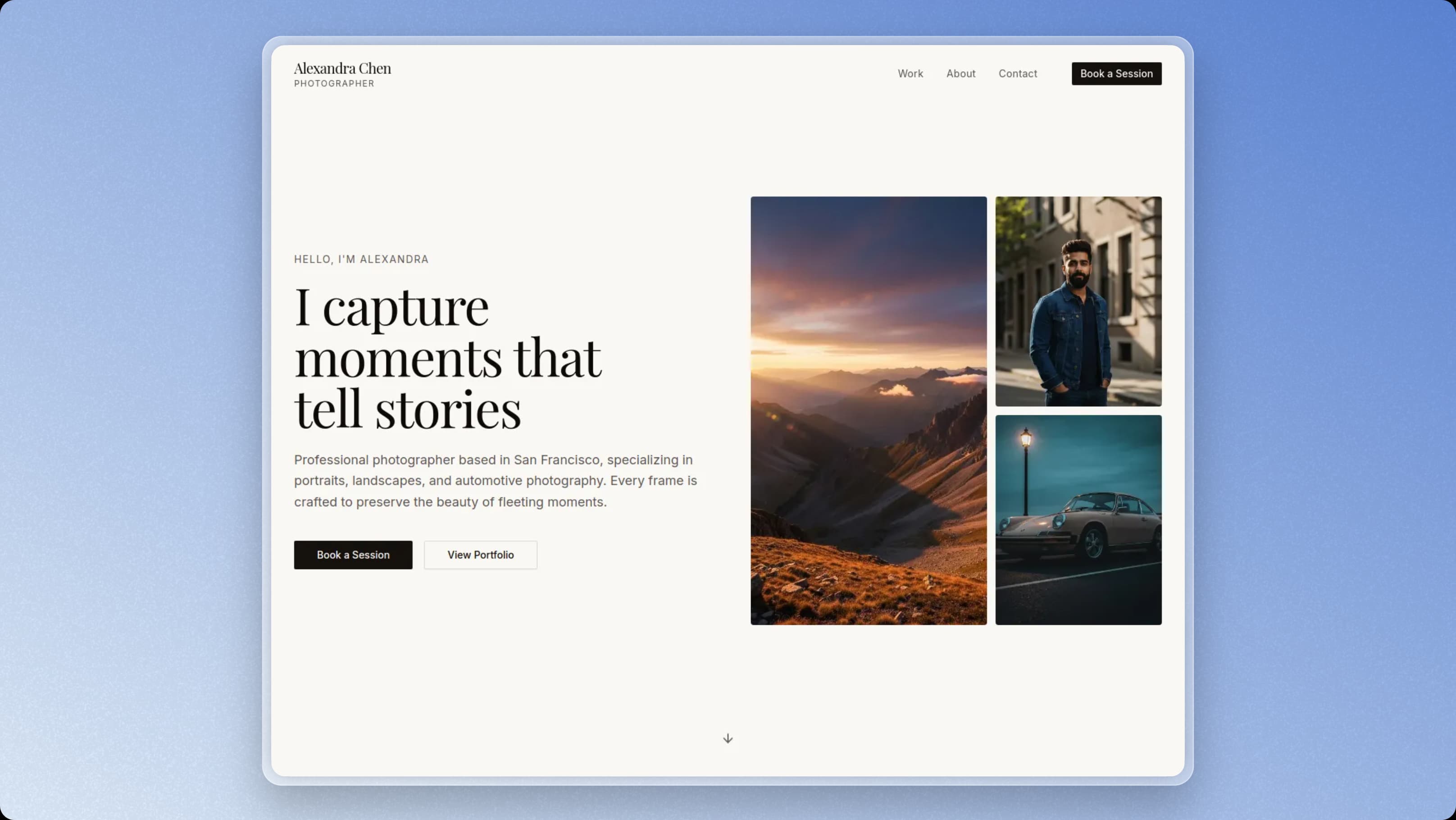
Building a professional photography portfolio website doesn't have to cost hundreds of dollars. In this step-by-step guide, we'll walk you through using a free, open-source Next.js 16 portfolio template, customizing it with your own work (all in one simple file!), and deploying it online—all completely free using GitHub and Vercel.
Best part?This template is designed for photographers who aren't developers. You'll customize everything—your name, bio, portfolio images, and contact info—in just one file. No coding knowledge required!
What You'll Need
- A GitHub account (free at github.com)
- A Vercel account (free at vercel.com)
- Git installed on your computer (download from git-scm.com)
- A code editor like Cursor (free at cursor.com) or VS Code (free at code.visualstudio.com)
- Node.js installed (required for npm - download from nodejs.org)
- Your portfolio images ready to upload
Step 1: Get the Portfolio Template
First, we'll get the open-source portfolio template from GitHub. Choose the method that works best for you:
Easiest for beginners — no Git required!
- 01Go to github.com/ogjayp/photographer-portfolio-template
- 02Click the green "Code" button
- 03Select "Download ZIP"
- 04Extract the ZIP file to a folder on your computer (e.g., Desktop or Documents)
For developers familiar with Git and the command line.
Open your terminal (Command Prompt on Windows, Terminal on Mac) and run:
git clone https://github.com/ogjayp/photographer-portfolio-template.git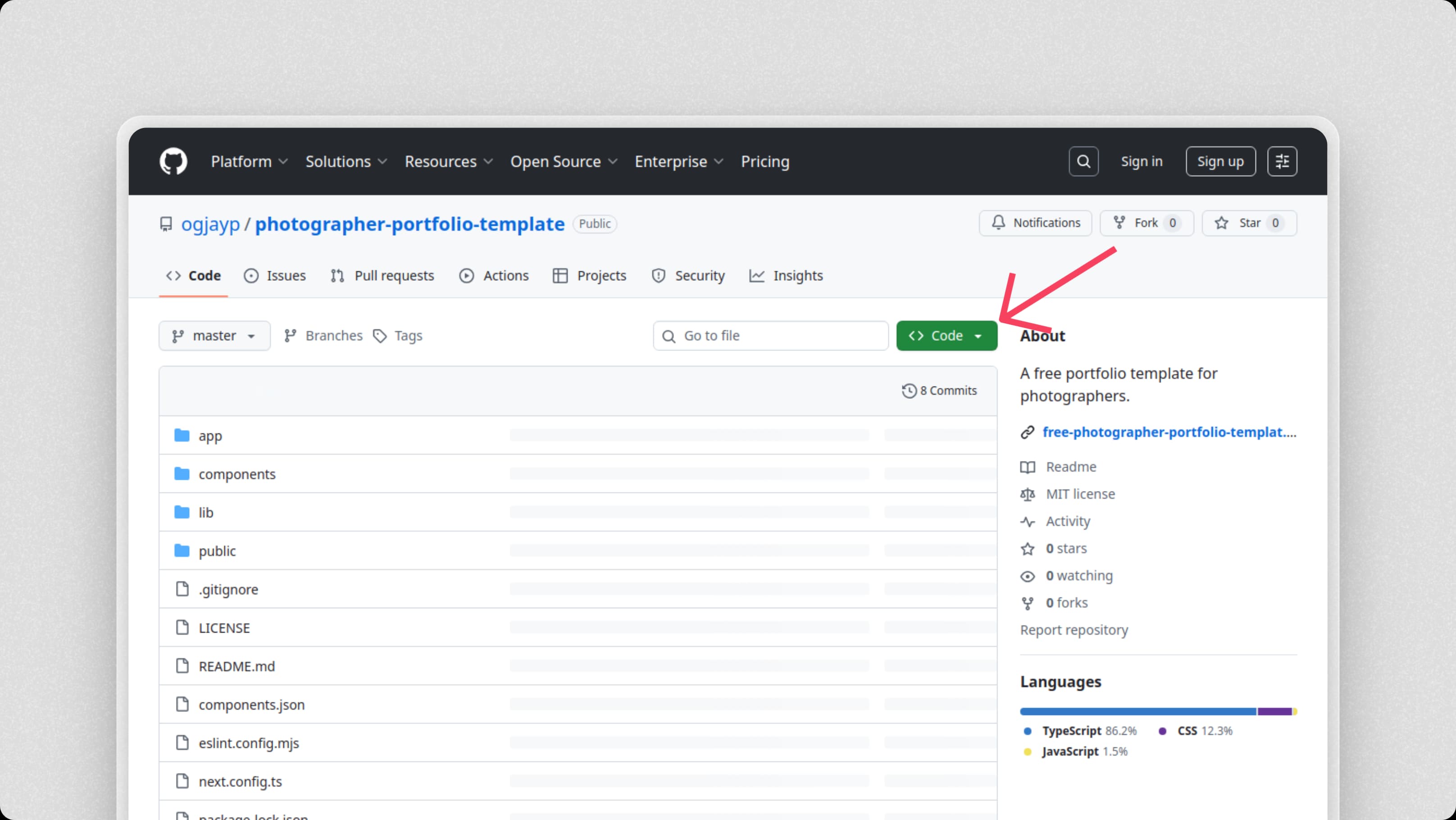
Open the Project in Your Editor
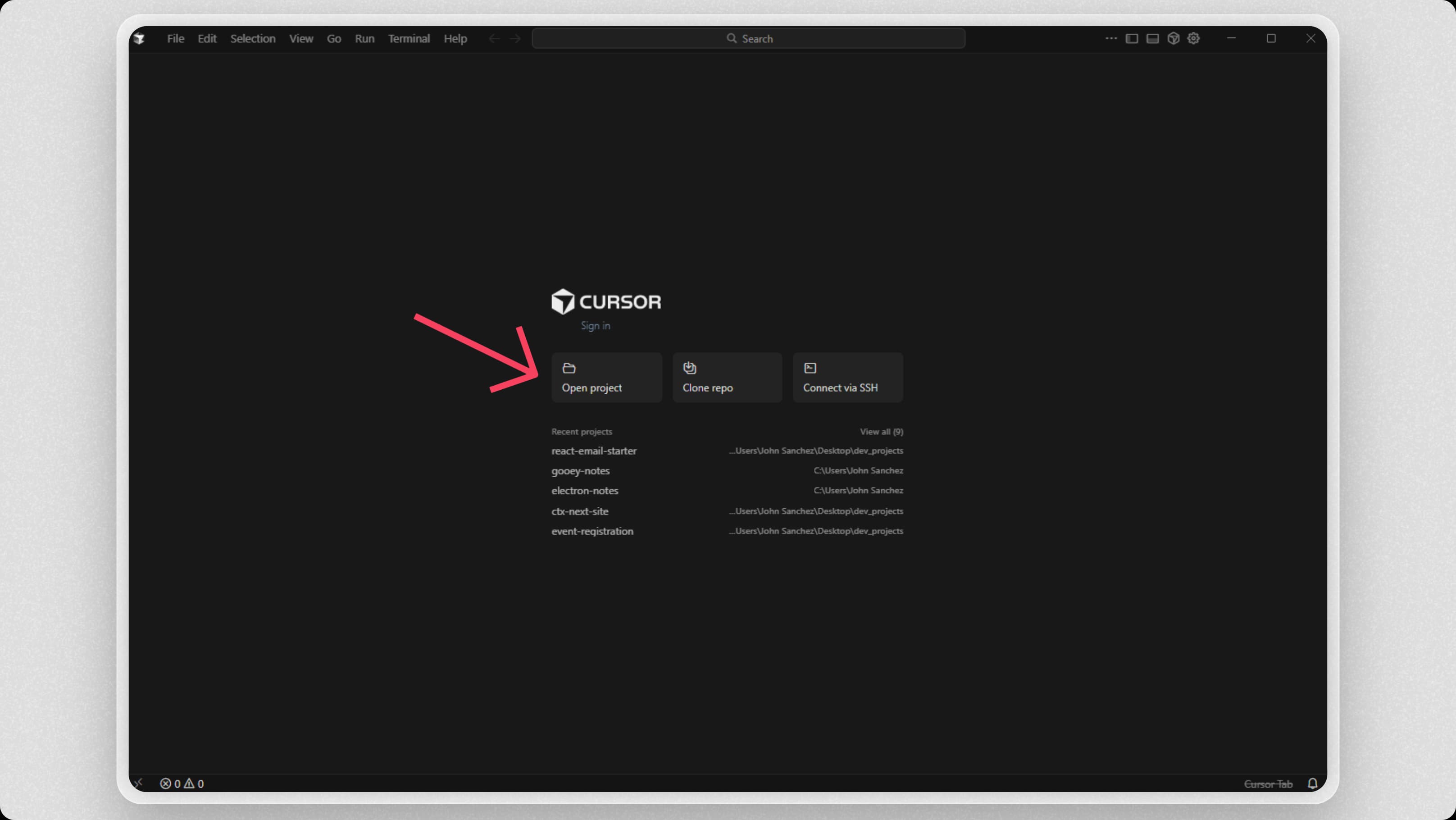
Open Cursor (or VS Code) and open the project folder:
- 01Click the "Open Project" button on the welcome screen, or go to File → Open Folder
- 02Navigate to where you extracted/cloned the template folder
- 03Select the
photographer-portfolio-templatefolder and click Open
Tip: If you downloaded the ZIP, the folder might be named photographer-portfolio-template-master. You can rename it to photographer-portfolio-template if you prefer.
Step 2: Install Dependencies
Modern frameworks like Next.js require installing dependencies before you can run the project. First, we need to open a terminal inside Cursor.
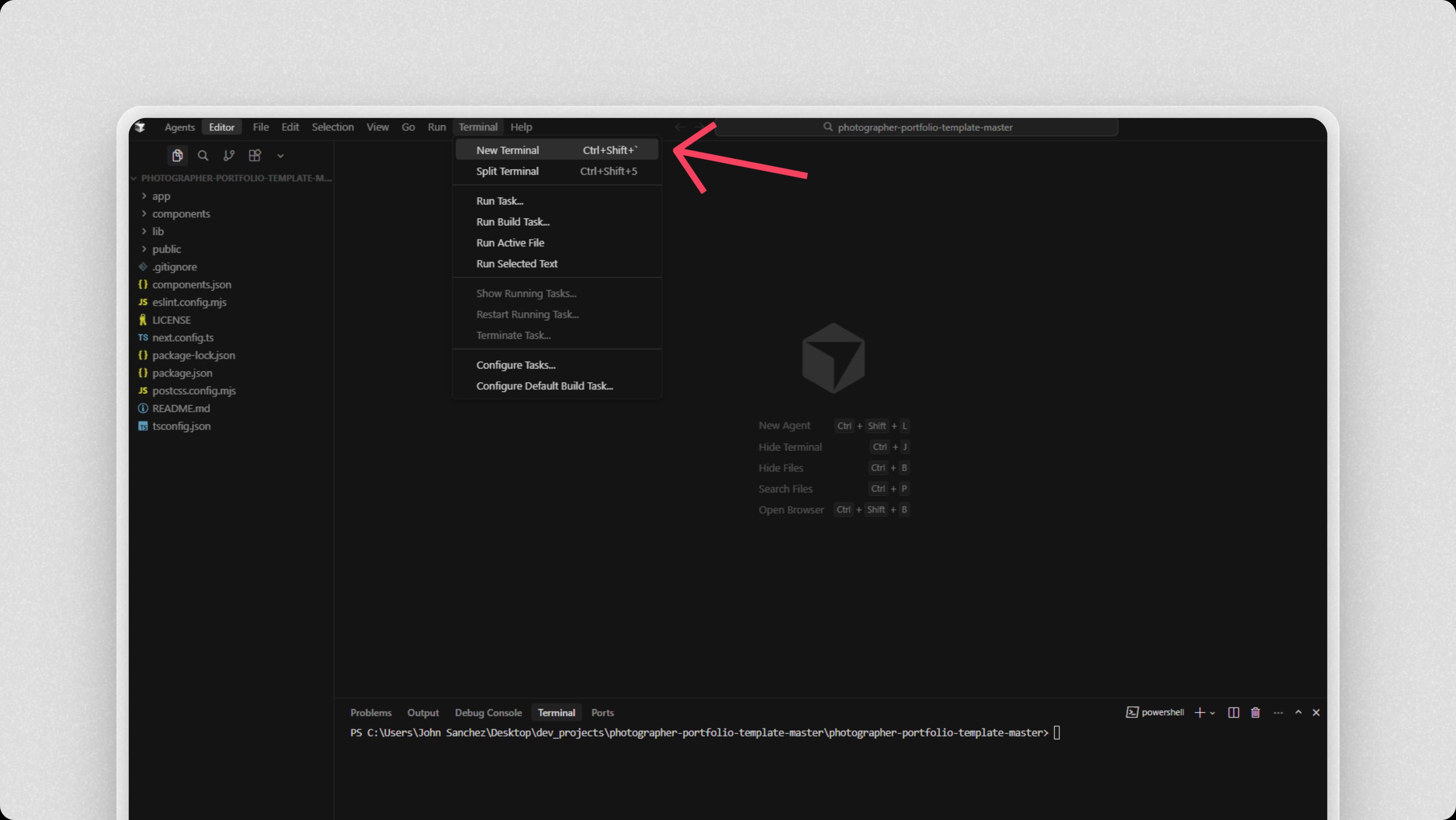
Open a Terminal in Cursor
In the menu bar at the top of Cursor, click Terminal (next to File), then select New Terminal. This opens a terminal panel at the bottom of the app.
Install the Project Dependencies
In the terminal, type this command and press Enter:
npm installThis reads the package.json file and installs all required packages. This may take a few minutes. Make sure you have Node.js installed first!
Test the Template
Start the Next.js development server to see the template in action:
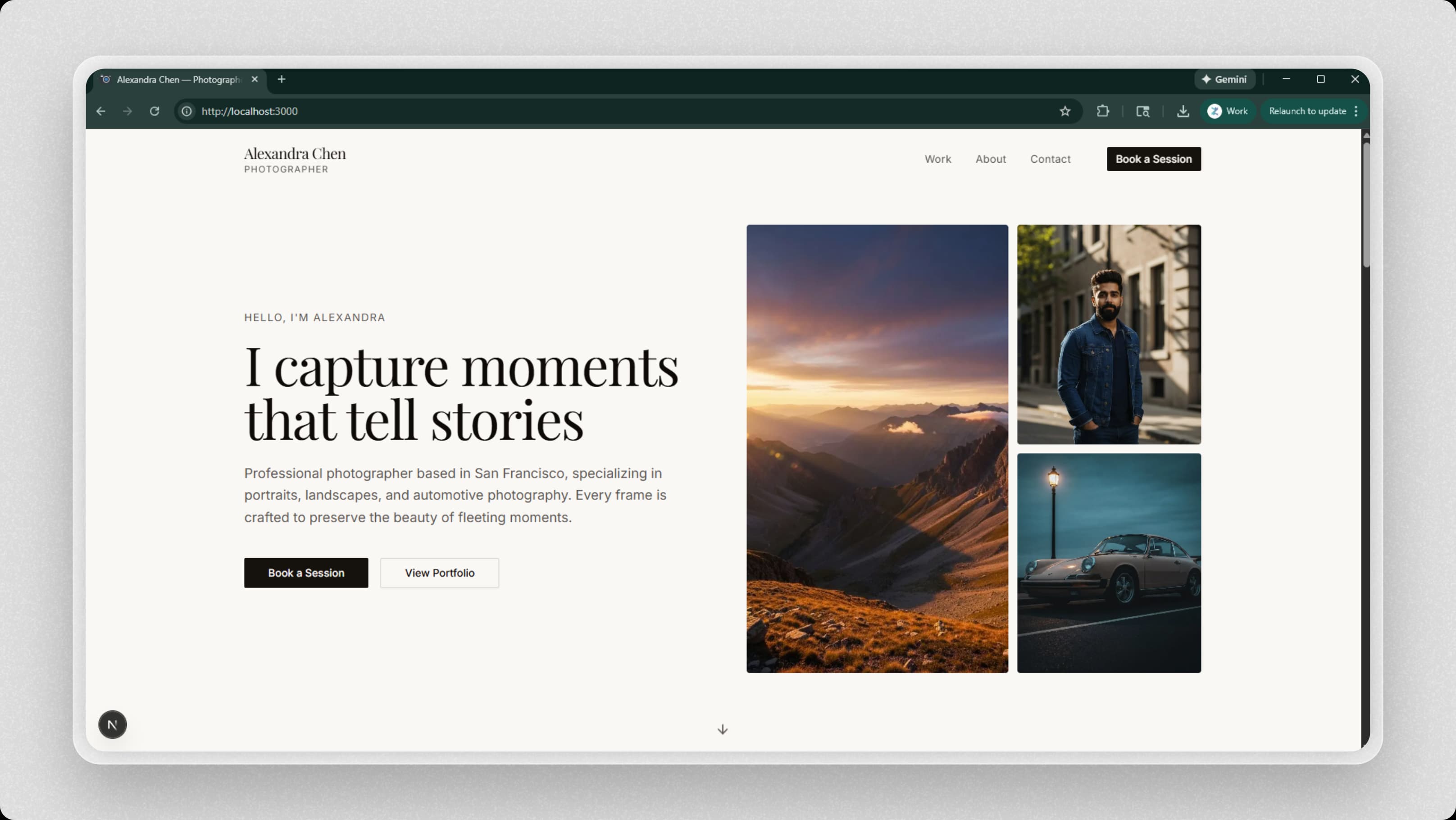
npm run dev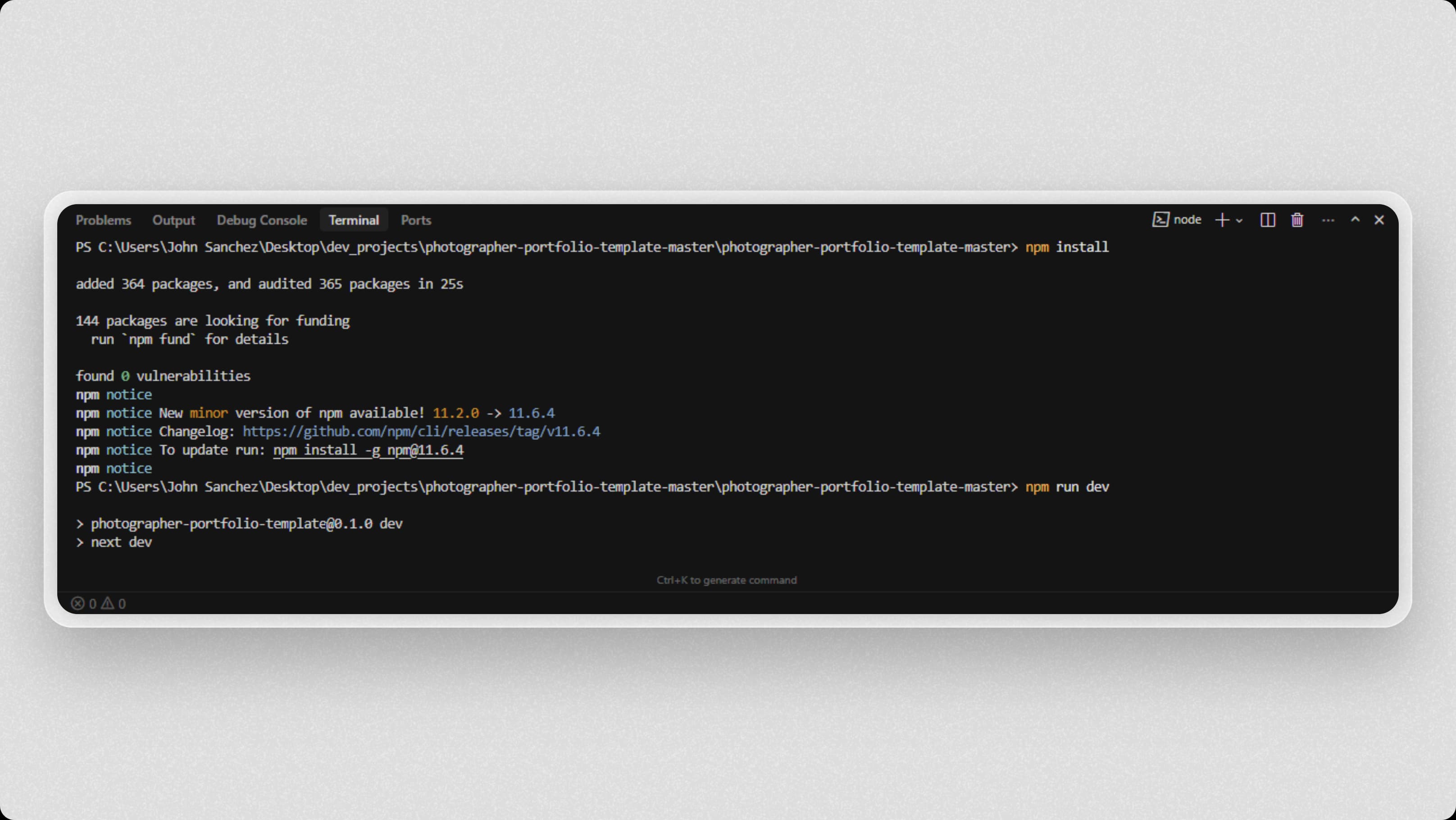
Open your browser to http://localhost:3000 to preview the template. Next.js will automatically reload when you make changes!
Step 3: Customize Everything in One File
The Easy Way
One File Does It All
This template is designed to be super simple! Instead of editing multiple files, you'll customize everything—your name, bio, portfolio images, contact info, and social media links—in just one file:lib/site-config.ts
Open the Config File
In Cursor's file explorer (left sidebar), navigate to the lib folder and click on site-config.ts to open it:
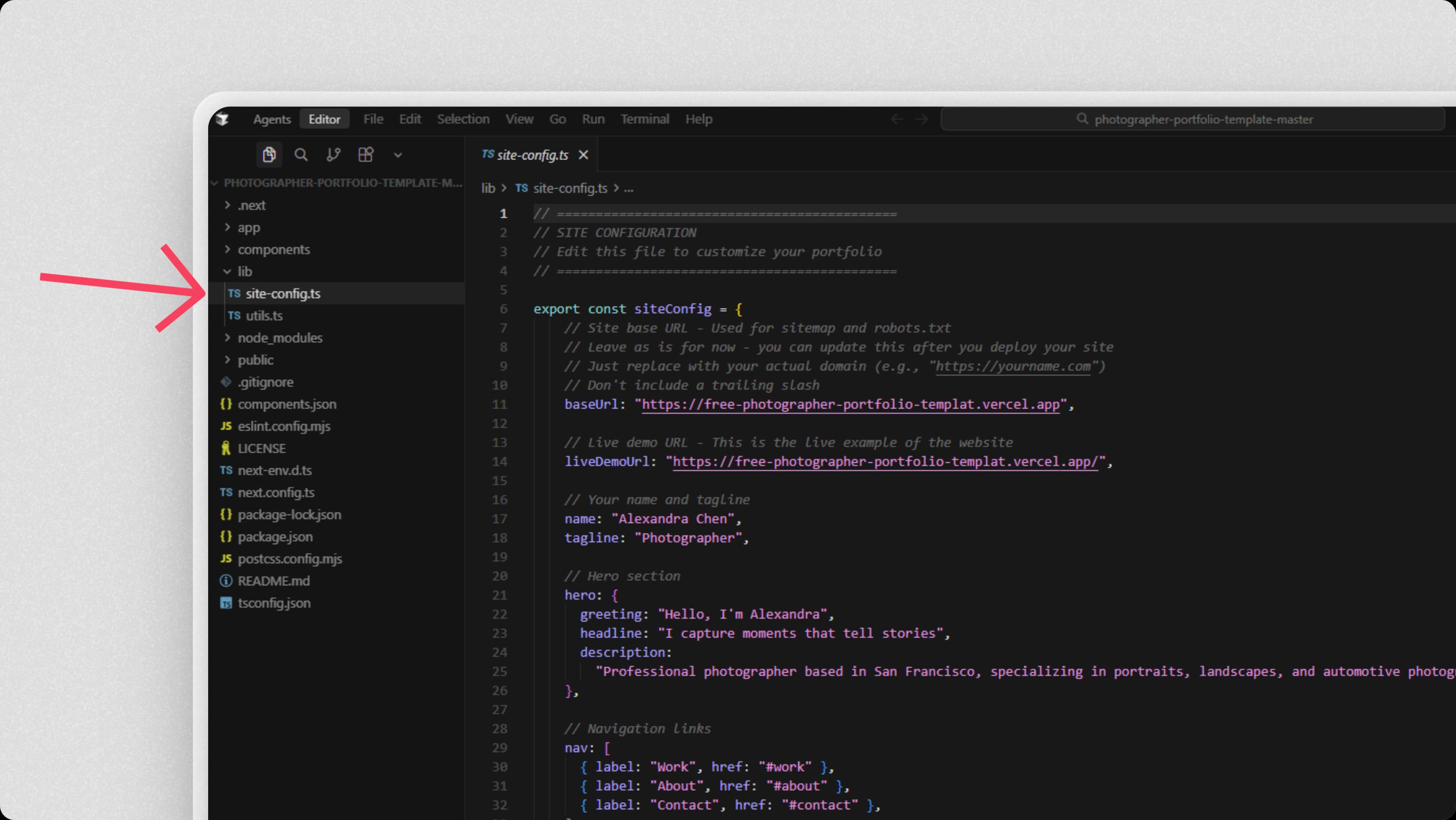
This file contains all your site's content in an easy-to-edit format. You can also view the file on GitHubto see what it looks like. You'll find sections for:
- Your name and tagline
- Hero section text
- About section content
- Contact email and social media links
- Portfolio items (images, titles, categories)
Add Your Portfolio Images
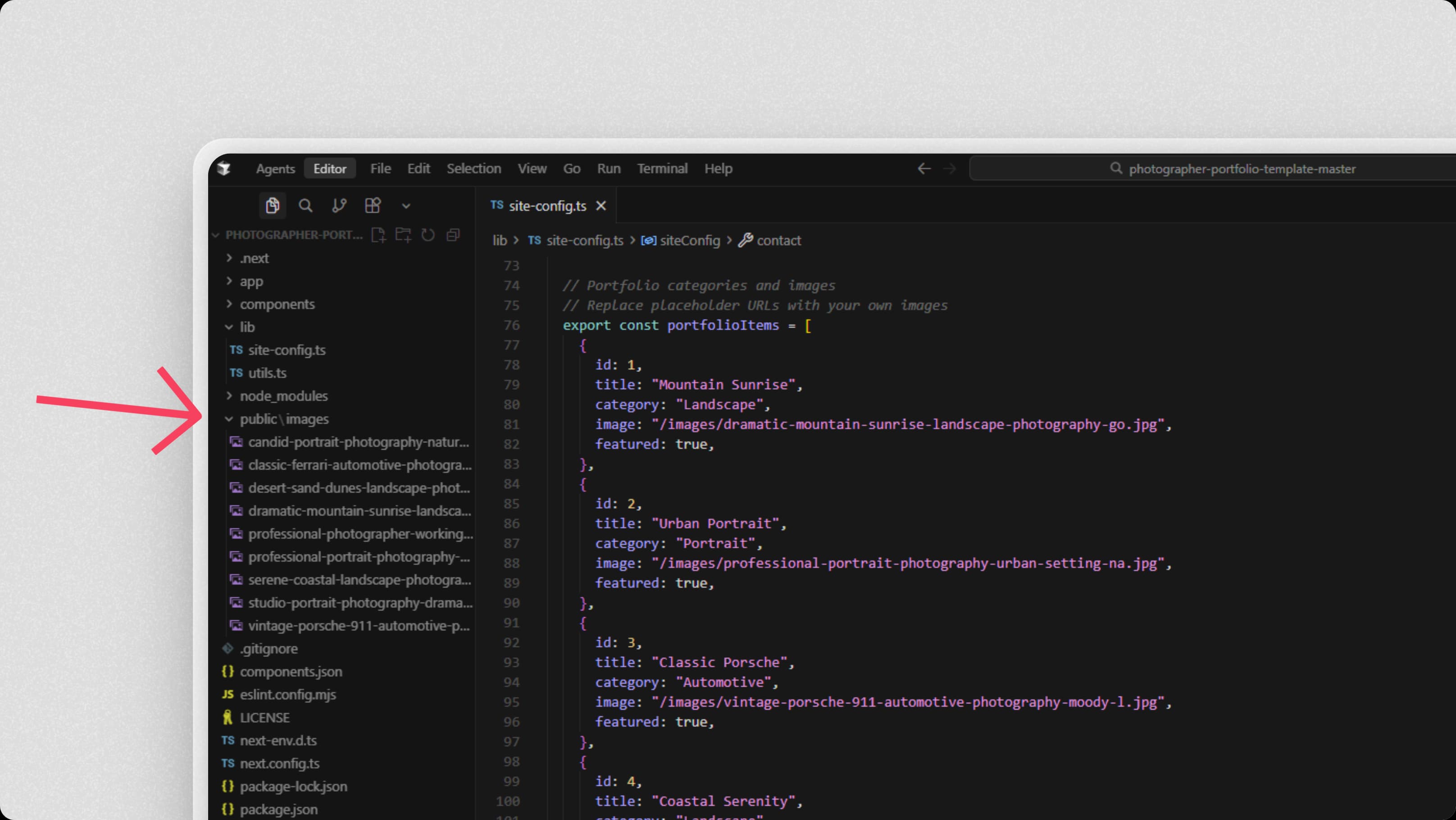
Before updating the config file, add your images to the public/ folder:
- 01In the file explorer, right-click on the
publicfolder and create a new folder calledimages - 02Copy your portfolio photos and paste them directly into
public/images— you can drag and drop or use Ctrl+V (Cmd+V on Mac) right in the editor! - 03Use descriptive filenames like
wedding-bride-portrait.jpg
Tip: Optimize your images before adding them! Use tools like TinyPNG or Squoosh to compress images. Aim for under 500KB per image while maintaining quality.
Update Your Portfolio Items
In lib/site-config.ts, scroll down to Line 76 where you'll find export const portfolioItems = [. This is where all your portfolio images are configured:
export const portfolioItems = [
  {
    id: 1,
    title: "Wedding Photography",
    category: "Weddings",
    image: "/images/wedding-1.jpg",
    featured: true,
  },
  {
    id: 2,
    title: "Portrait Session",
    category: "Portraits",
    image: "/images/portrait-1.jpg",
    featured: true,
  },
  // Add more items...
]
To add more images: Simply copy one of the { } blocks, paste it below the last one, and update the id, title, category, and imagevalues. Don't forget the comma after each block!
The image path should start with /images/and match the filename you saved in the public/images folder.
Set Up Your Contact Form
The template includes a contact form that works without any backend setup! It uses FormSubmit, a free service.
Go to Line 57 in lib/site-config.ts and update the email address in the quotes:
email: "your-email@example.com",
After you deploy your site, you'll need to test the contact form by submitting a message, then click the verification link FormSubmit sends to your email. We'll cover this in Step 5!
Preview Your Changes
Remember to save your work often! Press Ctrl+S (Windows) or Cmd+S (Mac) to save. If you still have npm run dev running in your terminal, Next.js will automatically reload and show your changes in the browser!
Open http://localhost:3000 in your browser to see your customized portfolio.
Step 4: Save Your Project to GitHub
Now that you've customized your portfolio, let's save it to GitHub so you can deploy it and keep it backed up. The easiest way is using Cursor's built-in Source Control feature—no terminal needed!
Commit and Push Using Cursor's UI
Cursor can create the GitHub repository for you automatically when you publish. Here's how:

- 01Click the branch icon in the left sidebar (Source Control panel)
- 02You'll see all your changed files listed. Click the "+" button next to "Changes" to stage all files, or click the "+" next to individual files to stage them one by one
- 03Type a commit message in the box at the top (e.g.,
"Initial commit: My photography portfolio") - 04Click the checkmark icon (✓) or press
Ctrl+Enter(Windows) orCmd+Enter(Mac) to commit - 05Click the "Publish Branch" button that appears at the top of the Source Control panel
- 06If prompted, sign in to GitHub and authorize Cursor. Then select "Publish to GitHub"
- 07Choose whether to make it Public or Private (Private recommended), then click "OK"
- 08That's it! Cursor will create the repository and upload your code. You'll see a notification confirming the push was successful
If you prefer to create the repository on GitHub first, then connect it:
- 01Go to github.com/new and sign in
- 02Name your repository (e.g.,
my-photography-portfolio) - 03Choose "Public" or "Private" (Private recommended — both work for Vercel)
- 04Don't initialize with README, .gitignore, or license (you already have these)
- 05Click "Create repository"
- 06In Cursor's Source Control panel, click the "..." menu
- 07Select "Remote" → "Add Remote"
- 08Enter the remote name as
originand the URL ashttps://github.com/YOUR_USERNAME/YOUR_REPO_NAME.git - 09Then commit and push as described in the steps above (steps 1-4)
Step 5: Deploy to Vercel (Free Hosting)
Vercel offers free hosting for static sites and Next.js applications with automatic deployments from GitHub. Perfect for portfolio websites!
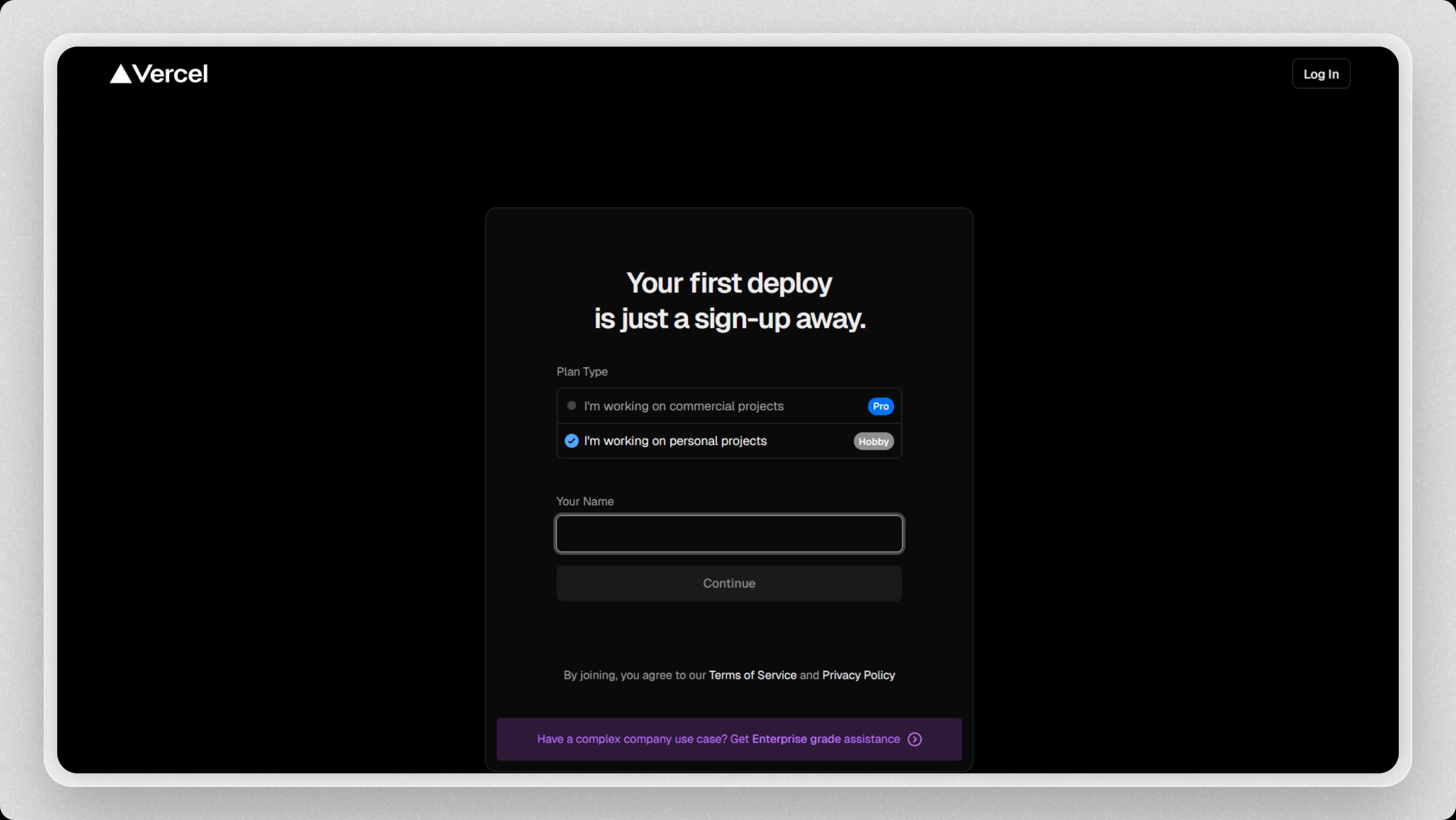
Create a Vercel Account
- 01Go to vercel.com/signup
- 02Sign up with your GitHub account (recommended for easiest setup)
- 03Authorize Vercel to access your GitHub repositories
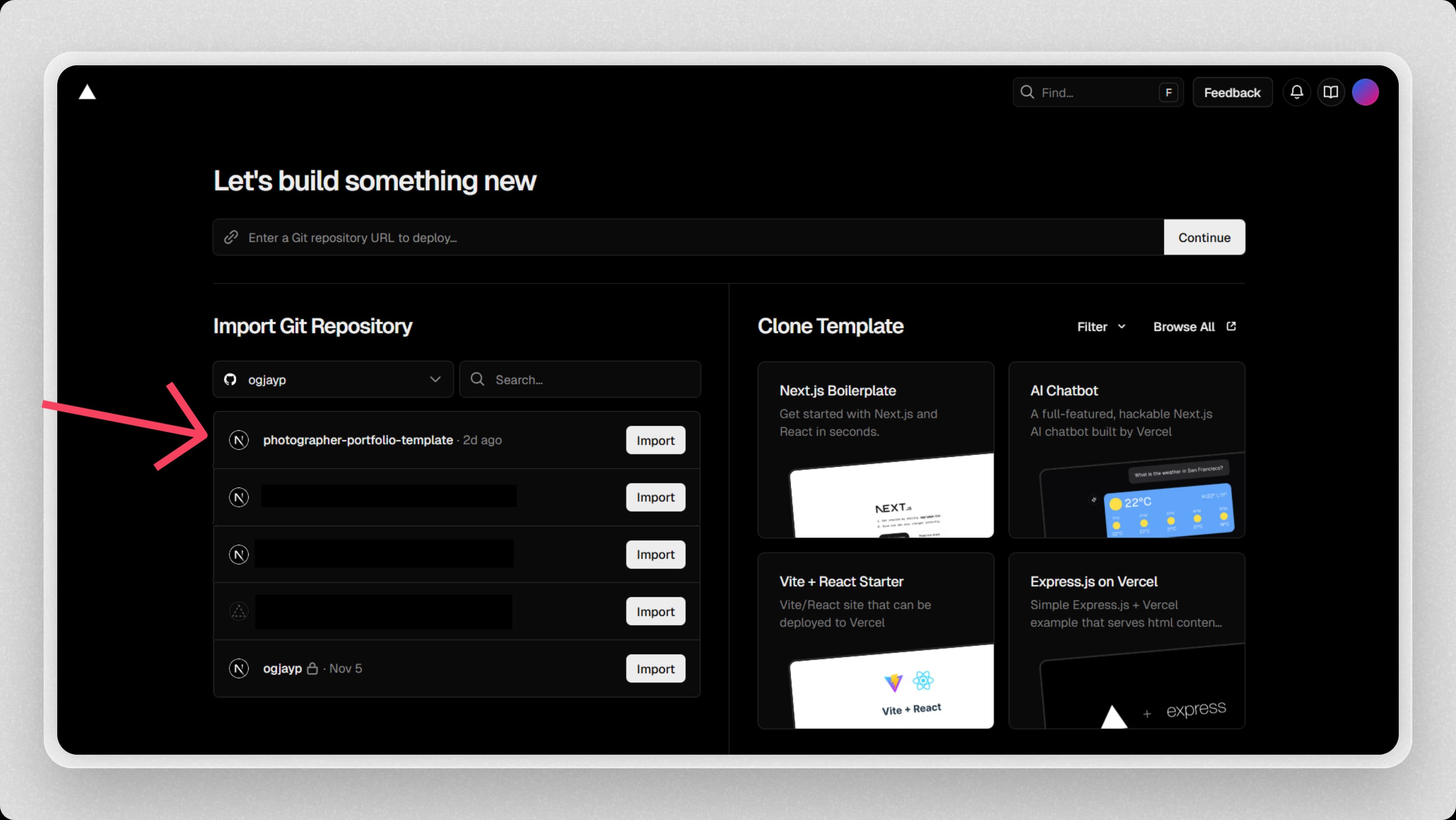
Import Your GitHub Repository
- 01Once logged in, click "Add New..." → "Project"
- 02Find and select your portfolio repository from the list
- 03Click "Import"
Deploy!
That's it! Vercel will automatically detect that this is a Next.js project and configure everything for you. Just click the "Deploy" button and wait 1-2 minutes for the build to complete.
Once deployed, you'll get a URL like your-portfolio.vercel.app. Your Next.js portfolio is now live! Share this URL with the world.
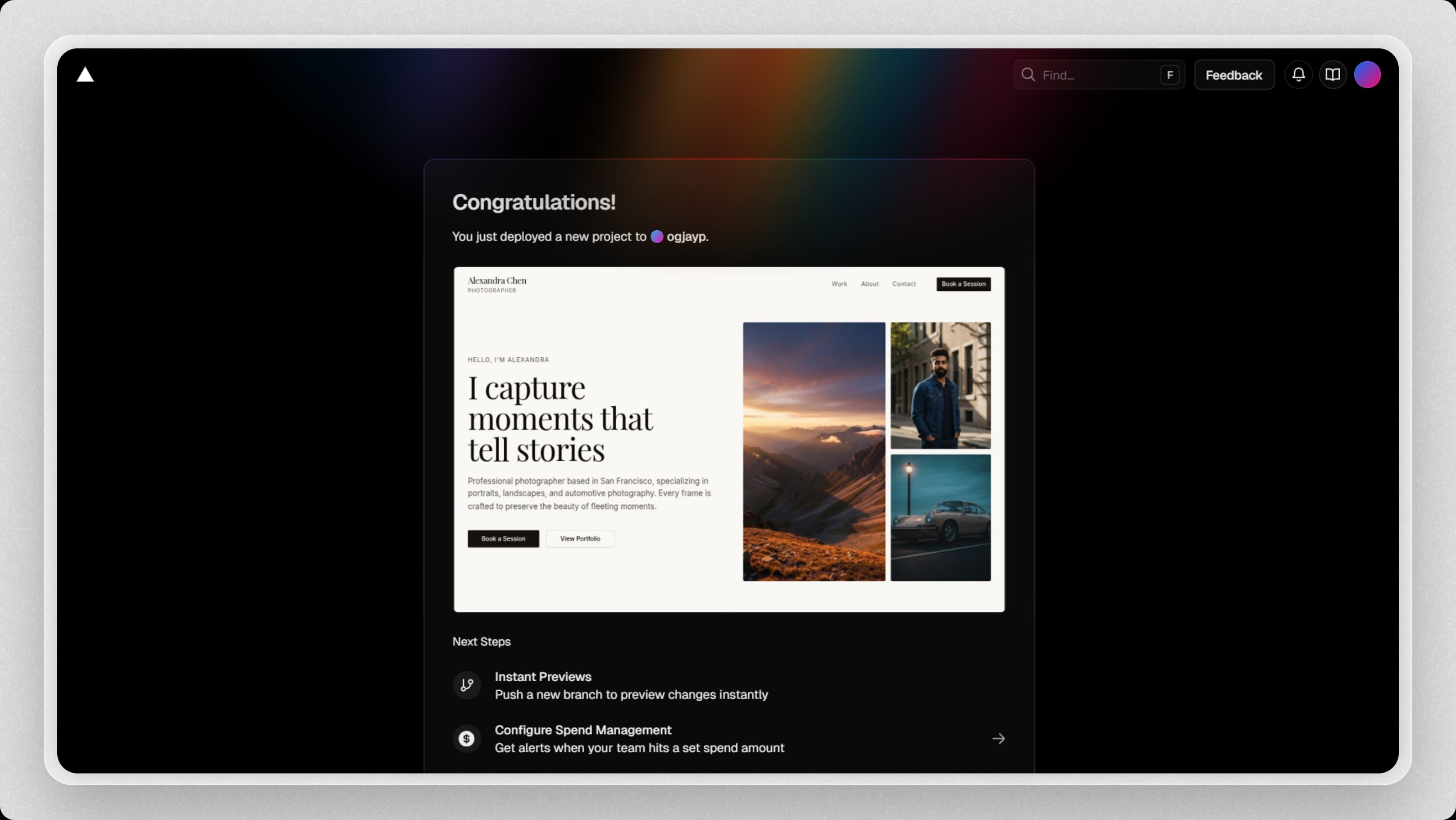
Automatic Updates
The best part? Every time you push changes to your GitHub repository, Vercel automatically rebuilds and deploys your site. Just update your code locally, commit, push to GitHub, and your live site updates within minutes—no manual deployment needed!
Optional: Custom Domain
Want to use your own domain (like yourname.com)? Vercel's free plan includes custom domain support! Go to your project settings → Domains, add your domain, and follow the DNS configuration instructions.
Don't Forget: Test Your Contact Form!
Now that your site is live, test your contact form to activate it:
- 01Visit your live site and fill out the contact form with a test message
- 02Check your email inbox for a verification email from FormSubmit
- 03Click the verification link to activate your form
- 04That's it! Future messages will go directly to your inbox
Final Tips & Best Practices
Keep Your Portfolio Updated
Regularly add new work, remove older images that no longer represent your style, and update your bio as you grow. Since deployment is automatic, updating is as simple as editing lib/site-config.ts, committing your changes, and pushing to GitHub. Your live site updates automatically!
Optimize Images
Large images slow down your site. Use tools like TinyPNG or CloudConvert to compress images before uploading. Aim for under 500KB per image while maintaining quality.
Test Before Deploying
Always run npm run devlocally to test changes before pushing to GitHub. Next.js 16's fast refresh will show your changes instantly. This catches errors before they go live.
Learn the Basics
Understanding basic HTML, CSS, and JavaScript will help you customize your portfolio further. Free resources like freeCodeCamp and MDN Web Docs are great places to start.
You're All Set!
You now have a professional photography portfolio website hosted for free. Your site is fast, automatically updates when you make changes, and looks completely professional.
Remember: the best portfolio is one that showcases your unique style and makes it easy for potential clients to see your work and contact you. Keep it updated, keep it personal, and most importantly—keep creating amazing photography!